
Appearance
Customizations
This guide covers how to customize and extend the Bankroll Casino theme using the child theme. All customizations are made within the child theme to ensure they persist through parent theme updates.
Setting Up the Child Theme
The child theme lets you safely customise the Bankroll Casino theme without touching the parent theme files. This means your changes survive every parent theme update.
Steps
Download the child theme - go to your Downloads page and click Download Child Theme next to your product.
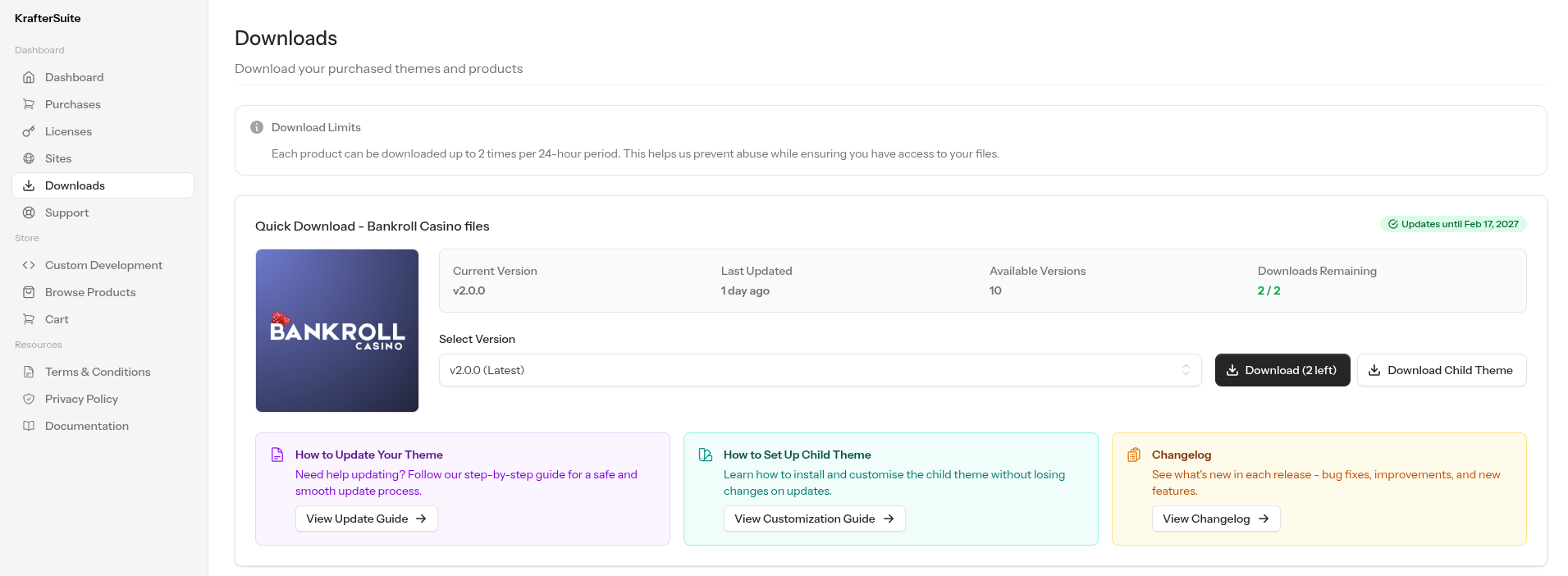
Install and activate it - upload
bankroll-casino-child.zipto WordPress the same way you installed the parent theme. For detailed steps, see Installation Methods.Activate the child theme - in WordPress go to Appearance → Themes, find Bankroll Casino Child, and click Activate.
TIP
Make sure the parent theme (Bankroll Casino) remains installed. The child theme requires it - activating only the child theme without the parent will cause errors.
Once the child theme is active you are ready to start customising. All changes you make inside the child theme will persist when you update the parent theme.
Blocks Customization
The theme supports two types of block customizations: overriding existing block styles and creating entirely new ones. Both approaches use the child theme's file structure to keep your changes separate from the parent theme.
Prerequisites
Before starting, make sure you have the child theme installed and activated. If you haven't set up the child theme yet, refer to the Installation Guide.
Development Environment Only
Always make customizations on a local or development environment first. Never edit theme files directly on a live production site - a small PHP error can take your entire site down. Test everything locally, verify it works, and only then deploy to production.
Recommended Tools
If you don't have a local development environment set up yet, here are some tools to get started:
| Tool | Description |
|---|---|
| Local (by Flywheel) | The easiest way to run WordPress locally. One-click site creation, no server configuration needed. Recommended for beginners. |
| Visual Studio Code | Free code editor with PHP support, file explorer, and integrated terminal. Great for editing theme files. |
With Local, you can create a fresh WordPress site in minutes, install the theme and child theme, and safely experiment with customizations without any risk to your live site.
Available Blocks
The following blocks support template customization:
| Block | Folder Name | Template Path |
|---|---|---|
| Content | Content | includes/Blocks/Content/templates/ |
| FAQ | Faq | includes/Blocks/Faq/templates/ |
| Grid | Grid | includes/Blocks/Grid/templates/{post_type}/ |
| Pros & Cons | ProsCons | includes/Blocks/ProsCons/templates/ |
| Steps | Steps | includes/Blocks/Steps/templates/ |
| Toplist | Toplist | includes/Blocks/Toplist/templates/ |
Overriding an Existing Block Template
You can override any parent theme block template by creating a file with the same name in the child theme. This is useful when you want to change the layout or markup of a built-in style without creating a new style option.
Step 1: Identify the Template
Find the template you want to override in the parent theme. For example, the FAQ block's default template is located at:
bankroll-casino/includes/Blocks/Faq/templates/style-1.phpStep 2: Copy the Template to Child Theme
Create the same folder structure in your child theme and copy the template file:
bankroll-casino-child/includes/Blocks/Faq/templates/style-1.phpStep 3: Modify the Template
Edit the copied template in the child theme. The parent theme's version will be ignored and your child theme version will be used instead.
All block data is available through the $args variable. To inspect what data is available, add the dump_data($args) helper at the top of your template:
php
<?php dump_data($args); ?>This outputs a formatted, collapsible view of all available data for the block.
Once you've identified the data you need, remove the dump_data() call and build your template.
Creating a New Block Style
Creating a new style adds a new option to the block's style dropdown in the WordPress editor. This lets content editors choose between the built-in styles and your custom ones.
Step 1: Create the Template File
Create a new template file in the child theme. The filename becomes the style identifier:
bankroll-casino-child/includes/Blocks/Faq/templates/custom-style.phpUse dump_data($args) to explore the available data, then build your template:
php
<?php
if (!defined('ABSPATH')) {
    exit;
}

$faqs = $args['faqs'];
?>

<div class="my-custom-faq">
    <?php foreach ($faqs as $faq) { ?>
        <div class="my-custom-faq__item">
            <h3><?php echo esc_html($faq['question']); ?></h3>
            <p><?php echo wp_kses_post($faq['answer']); ?></p>
        </div>
    <?php } ?>
</div>
Step 2: Register the Template Style in the Admin
Add a filter in your child theme's functions.php to make the new style appear in the block's style dropdown. Each block type has its own ACF field filter:
| Block | Filter Key |
|---|---|
| FAQ | acf/load_field/key=field_e316908b52e5 |
| Pros & Cons | acf/load_field/key=field_477b14145184 |
| Steps | acf/load_field/key=field_68fcacda15fba |
| Toplist | acf/load_field/key=field_6990627576679 |
Add the filter inside the after_setup_theme action in functions.php:
php
add_action('after_setup_theme', function () {
    add_filter('acf/load_field/key=field_e316908b52e5', function ($field) {
        $field['choices']['custom-style'] = 'My Custom FAQ Style';

        return $field;
    });
});
The array key (custom-style) must match your template filename without the .php extension.
Step 3: Verify
Edit a post that uses the block, select your new style from the dropdown, and preview the page.
Creating a New Grid Block Style
The Grid block works differently from other blocks because styles are post-type dependent. Each post type (casino, bonus, news, etc.) can have its own set of styles.
Step 1: Create the Template
Grid templates are organized by post type. Create your template in the appropriate post type folder:
bankroll-casino-child/includes/Blocks/Grid/templates/casino/custom-style.phpStep 2: Register the Style
Use the bankroll_grid_post_type_styles filter to add your style for a specific post type:
php
add_action('after_setup_theme', function () {
    add_filter('bankroll_grid_post_type_styles', function ($styles, $postType) {
        if ($postType === 'casino') {
            $styles['custom-style'] = 'My Custom Casino Grid';
        }

        return $styles;
    }, 10, 2);
});
Step 3: Register Wrapper Classes
Grid and Toplist blocks require wrapper classes for each custom style. Register them using the appropriate filter:
php
// For Grid blocks
add_filter('bankroll_grid_wrapper_classes', function ($classes, $style, $postType) {
    if ($postType === 'casino' && $style === 'custom-style') {
        return ['my-custom-casino-grid'];
    }

    return $classes;
}, 10, 3);

// For Toplist blocks
add_filter('bankroll_toplist_wrapper_classes', function ($classes, $style) {
    if ($style === 'custom-style') {
        return ['my-custom-toplist'];
    }

    return $classes;
}, 10, 2);
Adding Custom CSS for Blocks
You can add block-specific CSS that automatically loads when the block renders. No registration or enqueue code needed.
Step 1: Create the CSS File
Create a CSS file in the block's assets folder. The filename must match the block's folder name in lowercase:
bankroll-casino-child/includes/Blocks/Faq/assets/faq.css| Block | CSS Filename |
|---|---|
| Content | content.css |
| FAQ | faq.css |
| Grid | grid.css |
| Pros & Cons | proscons.css |
| Steps | steps.css |
| Toplist | toplist.css |
Step 2: Write Your Styles
Use vanilla CSS. The theme provides CSS custom properties for colors that you can use to stay consistent with the theme's color scheme. Or you can use your own colors.
css
.my-custom-faq {
    background-color: var(--card-bg);
    border: 1px solid red;
    border-radius: 8px;
    padding: 20px;
}

.my-custom-faq__item {
    color: white;
    border-radius:8px;
    background-color:blue;
}
The CSS file is automatically enqueued whenever the block is rendered on a page. It only loads on pages that actually use the block.
Helper Classes
The parent theme provides helper classes that you can use in your custom templates.
Rendering Images
php
use Bankroll\Helpers\View;

// Simple image output
View::img(imageId: $data['image_id']);

// Image with container and custom classes
View::img(
    imageId: $data['image_id'],
    containerClasses: ['image-wrapper'],
    imageClasses: ['image-class'],
    size: 'medium',
    lazy: true,
);
Available Filters
The parent theme exposes the following WordPress filters for use in your child theme.
Theme Settings Filters
bankroll_custom_fonts
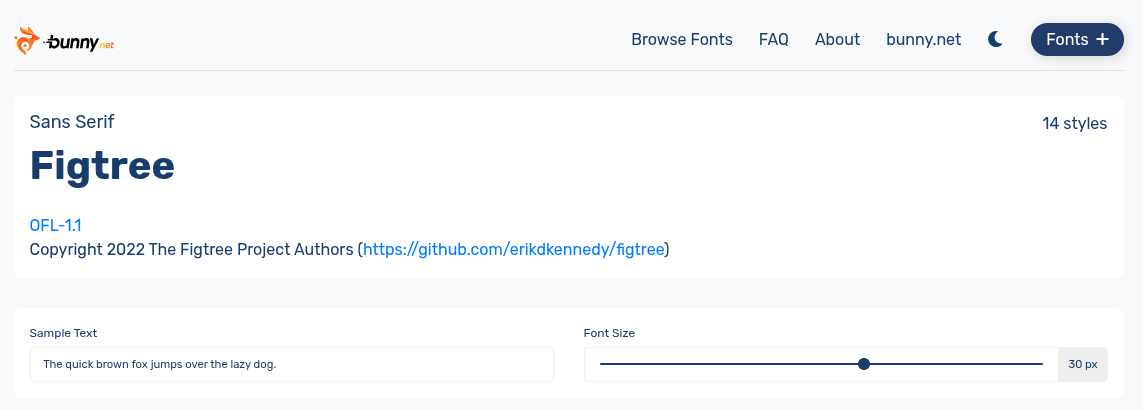
Add or remove font options available in both the heading and content font settings (Theme Settings → General → Heading Font and Content Font). Any font added here is automatically loaded from Bunny Fonts - no second filter needed.
php
add_filter('bankroll_custom_fonts', function ($fonts) {
    $fonts['Figtree'] = 'Figtree (Bunny Fonts)';

    return $fonts;
});| Parameter | Type | Description |
|---|---|---|
$fonts | array | Associative array of font-name => label font choices |
TIP
The font name key must match the Bunny Fonts slug exactly (e.g. Figtree).
Block Filters
bankroll_grid_post_type_styles
Add or remove available styles for a specific post type in the Grid block.
php
add_filter('bankroll_grid_post_type_styles', function ($styles, $postType) {
    if ($postType === 'casino') {
        $styles['custom-style'] = 'My Custom Casino Grid';
    }

    return $styles;
}, 10, 2);| Parameter | Type | Description |
|---|---|---|
$styles | array | Associative array of slug => label style options |
$postType | string | The post type being filtered (e.g. casino, bonus, slot) |
bankroll_grid_wrapper_classes
Override the wrapper CSS classes applied to a Grid block.
php
add_filter('bankroll_grid_wrapper_classes', function ($classes, $style, $postType) {
    if ($postType === 'casino' && $style === 'custom-style') {
        return ['my-custom-casino-grid'];
    }

    return $classes;
}, 10, 3);| Parameter | Type | Description |
|---|---|---|
$classes | array | Array of CSS class strings |
$style | string | The active style slug |
$postType | string | The post type |
bankroll_toplist_wrapper_classes
Override the wrapper CSS classes applied to a Toplist block.
php
add_filter('bankroll_toplist_wrapper_classes', function ($classes, $style) {
    if ($style === 'custom-style') {
        return ['my-custom-toplist'];
    }

    return $classes;
}, 10, 2);| Parameter | Type | Description |
|---|---|---|
$classes | array | Array of CSS class strings |
$style | string | The active style slug |
bankroll_steps_content_field
Override the ACF field configuration for the Steps block content field. Use this in a child theme to change the field type (e.g. from textarea to wysiwyg) without modifying parent theme files.
php
add_filter('bankroll_steps_content_field', function ($field) {
    $field['type'] = 'wysiwyg';

    return $field;
});| Parameter | Type | Description |
|---|---|---|
$field | array | ACF field configuration array for the step_content field |
Theme Customization
Coming soon