
Appearance
Installation Guide
Overview
This guide provides detailed instructions for installing the Bankroll Casino WordPress theme on your website. Choose the installation method that best suits your needs and technical comfort level.
Purchase & Download
Purchasing and setting up domain
- Log in or register your account
- Navigate to the Browse Products page, add theme to your cart, proceed to checkout
- Complete the checkout process
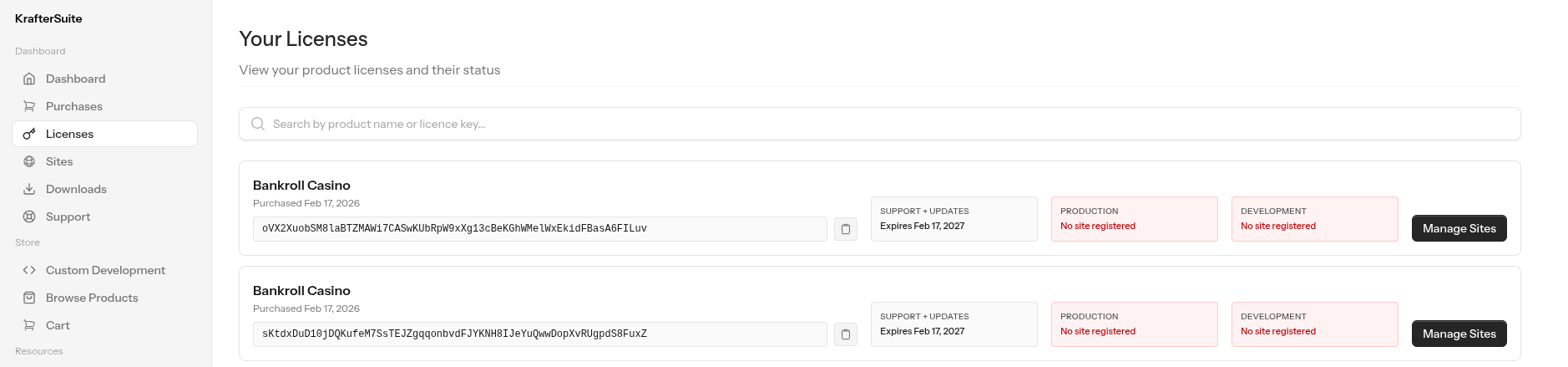
- You'll receive a license key inside licenses page
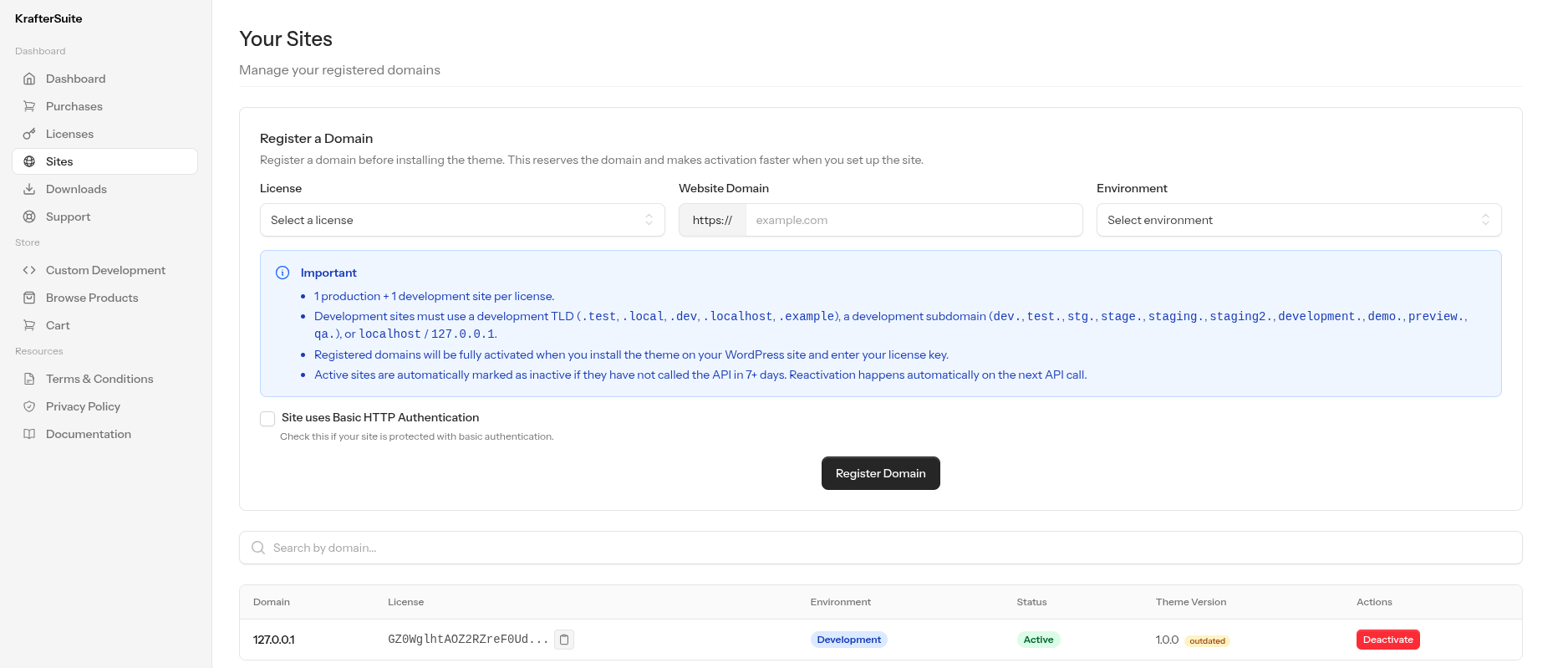
- Register your domain by pressing Manage Domains. Add your domain and choose environment. 1 production and 1 development environment allowed. If the site has http basic auth, input the credentials. The password is encrypted and stored securely in the database.
- That is it. Move to next step.
Downloading Theme Files
- Log in to your dashboard
- Navigate to Products → Downloads
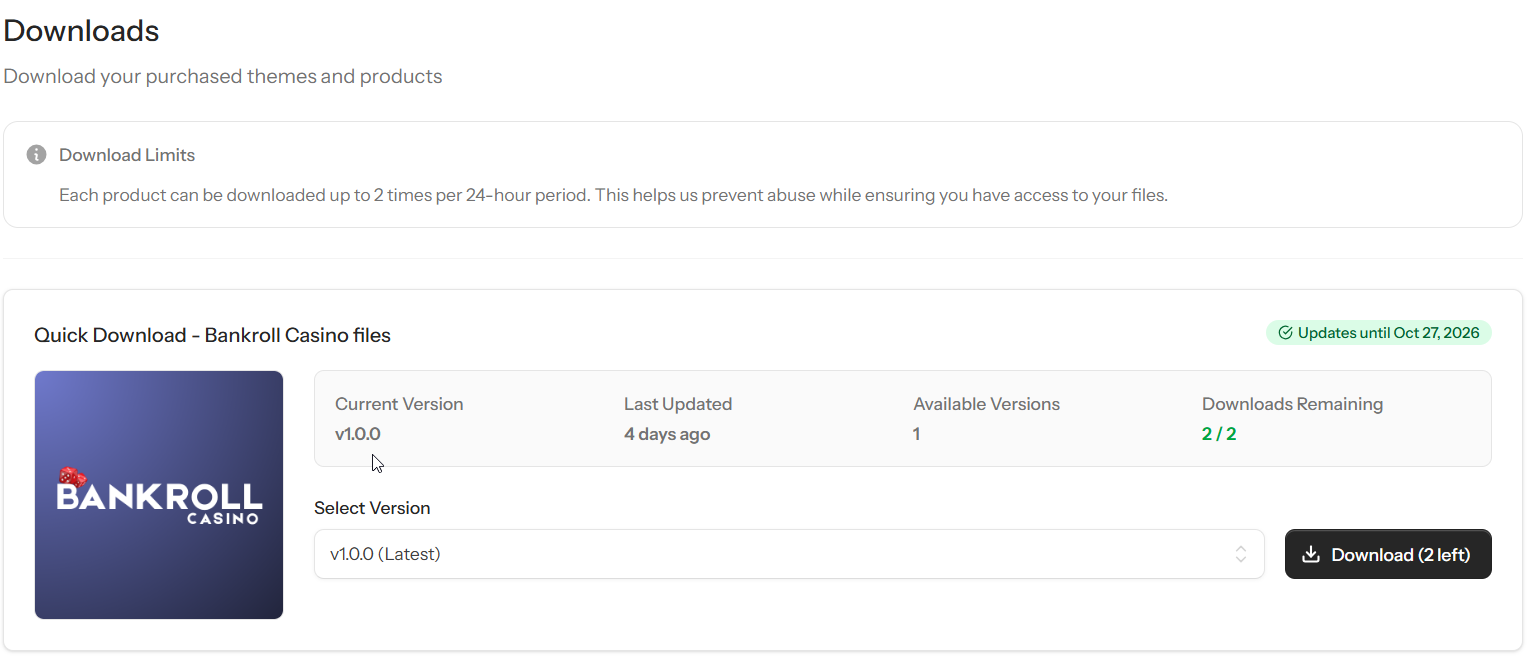
- Click the Download button to get
bankroll-casino-2.1.0.zip - Save the file to your computer
Important: Keep your license key handy - you'll need it during the setup process (covered in the Getting Started Guide).
System Requirements
Before installing the theme, ensure your hosting environment meets these requirements:
⚠️ CRITICAL REQUIREMENTS
- WordPress: Version 6.0 or higher ✓
- PHP: Version 8.3 or higher ✓
The theme will NOT work with older versions of PHP or WordPress.
Additional Requirements:
- MySQL: Version 5.7+ or MariaDB 10.3+
- Memory Limit: 256MB or higher recommended
- Upload Limit: 64MB or higher (for theme installation via admin panel)
Checking Your System Requirements
To verify your current environment:
- Log in to WordPress admin
- Go to Tools → Site Health
- Click the Info tab
- Review Server and WordPress sections
If your environment doesn't meet the requirements, contact your hosting provider to request an upgrade.
Installation Methods
Method 1: Installation from WordPress Admin Panel
This is the easiest and recommended method for most users.
Step 1: Access the WordPress Admin
- Log in to your WordPress admin dashboard
- Navigate to Appearance → Themes
Step 2: Upload the Theme
- Click the Add Theme button at the top of the page
- Click the Upload Theme button
- Click Choose File and select the
bankroll-casino-2.1.0.zipfile from your computer - Click Install Now
- Wait for the upload and installation to complete
Step 3: Activate the Theme
- Once the upload is complete, you'll see a success message
- Click the Activate button
- The theme will now be active on your website
Note: If you encounter upload size limitations, you may see an error like "The uploaded file exceeds the upload_max_filesize directive in php.ini". In this case, use Method 2 (FTP installation) or contact your hosting provider to increase the upload limits.
Method 2: Installation via FTP
This method is useful if you have upload size restrictions, prefer manual installation, or are comfortable using FTP clients.
Step 1: Prepare Your Files
- Locate the
bankroll-casino-2.1.0.zipfile on your computer - Extract/unzip the file using your preferred extraction tool
- You should see a folder named
bankroll-casinocontaining the theme files
Step 2: Connect via FTP
- Open your FTP client application (FileZilla, Cyberduck, WinSCP, etc.)
- Connect to your web server using your FTP credentials:
- Host/Server: Your server address (e.g., ftp.yourdomain.com or your server IP)
- Username: Your FTP username
- Password: Your FTP password
- Port: Usually 21 for FTP or 22 for SFTP
Where to find FTP credentials:
- Check your hosting control panel (cPanel, Plesk, etc.)
- Look for the welcome email from your hosting provider
- Contact your hosting provider's support if you don't have these details
Step 3: Navigate to the Themes Directory
Once connected, navigate to your WordPress installation directory
Open the following path:
/wp-content/themes/The full path typically looks like:
/public_html/wp-content/themes/or
/home/username/public_html/wp-content/themes/
Step 4: Upload the Theme
- Locate the extracted
bankroll-casinofolder on your local computer (in your FTP client's left panel) - Drag and drop the entire
bankroll-casinofolder into the/wp-content/themes/directory on your server (right panel) - Wait for the upload to complete - this may take several minutes depending on your connection speed
- Verify that all files have been uploaded successfully
Step 5: Activate the Theme
- Log in to your WordPress admin dashboard
- Navigate to Appearance → Themes
- You should see the Bankroll Casino theme listed among your installed themes
- Hover over the theme thumbnail and click the Activate button
- The theme will now be active on your website
Method 3: Installation via cPanel File Manager
If you have cPanel access but prefer not to use FTP, you can use the File Manager.
Step 1: Access cPanel File Manager
- Log in to your cPanel account
- Locate and click File Manager
- Navigate to
/public_html/wp-content/themes/(or your WordPress installation path)
Step 2: Upload the Theme
- Click the Upload button at the top of the File Manager
- Click Select File and choose the
bankroll-casino-2.1.0.zipfile - Wait for the upload to complete
- Close the upload window and return to File Manager
Step 3: Extract the Theme
- Locate the uploaded
bankroll-casino-2.1.0.zipfile in the themes directory - Right-click the file and select Extract
- Confirm the extraction path is
/public_html/wp-content/themes/ - Click Extract File(s)
- Once extracted, you can delete the
bankroll-casino-2.1.0.zipfile
Step 4: Activate the Theme
- Log in to your WordPress admin dashboard
- Navigate to Appearance → Themes
- Find the Bankroll Casino theme and click Activate
Post-Installation Verification
After installation and activation, verify the theme is working correctly:
- Visit your website's front end to see the theme in action
- Check that the onboarding notice appears in your WordPress admin
- Navigate to Appearance → Theme Settings to confirm the settings page is accessible