
Appearance
Shortcodes
Shortcodes are reusable content snippets that you can add throughout your site. They can be used in various locations including Content Blocks, Before Content sections, and After Content sections.
Notice Shortcode
The Notice shortcode creates styled notification boxes to highlight important information, warnings, or success messages to your visitors.
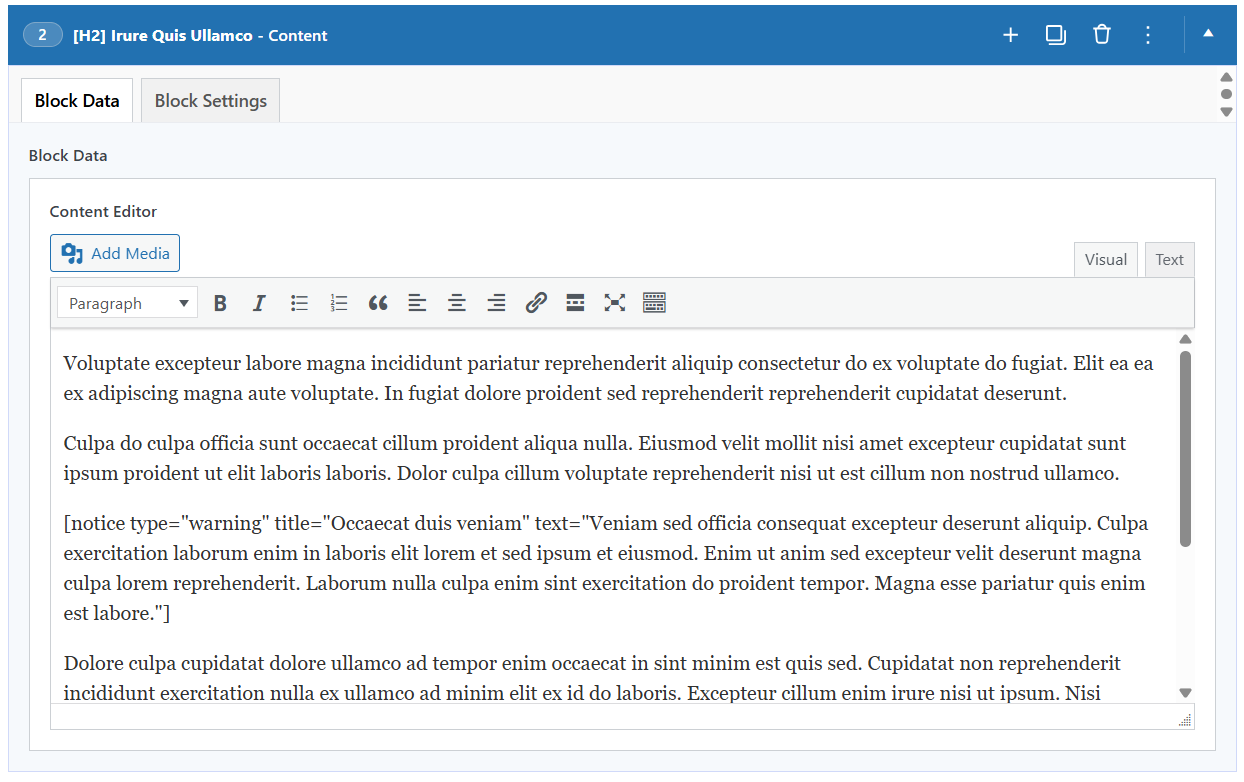
Basic Usage
[notice type="info" title="Did you know?" text="This casino offers 24/7 customer support!"]Available Parameters
type (optional)
Controls the visual style and color scheme of the notice box.
Options:
info(default) - Blue styling for informational messageswarning- Red styling for warnings or important alertssuccess- Green styling for positive messages
Example:
[notice type="warning" title="Important" text="This bonus requires a minimum deposit."]title (optional)
The heading text displayed at the top of the notice box.
Example:
[notice type="success" title="Great News!" text="New players get 100% welcome bonus!"]text (required)
The main content of the notice. Supports basic HTML formatting.
Allowed HTML tags:
<strong>or<b>- Bold text<em>or<i>- Italic text<br>- Line breaks
Example:
[notice type="info" text="This casino accepts <strong>Bitcoin</strong> and other cryptocurrencies.<br>Fast withdrawals guaranteed!"]url (optional)
Adds a clickable link at the bottom of the notice box. Use the pipe character | to separate the URL from the link text.
Format: url|Link Text
Examples:
With custom link text:
[notice type="info" title="Learn More" text="Discover our payment methods." url="https://example.com/payments|View All Payment Options"]Using URL as link text:
[notice type="info" text="Visit our site for details." url="https://example.com"]Examples
[notice type="info" title="New Player Bonus" text="Get up to $1000 welcome bonus on your first deposit!" url="https://casino.com/bonus|Claim Bonus Now"][notice type="warning" title="Wagering Requirements" text="This bonus has a <strong>35x wagering requirement</strong>.<br>Please read the terms before claiming."][notice type="success" title="Verified Casino" text="This casino is <strong>licensed and regulated</strong> by the UK Gambling Commission." url="https://casino.com/license|View License"]Date Shortcode
The Date shortcode outputs the current date inline within your text. It's useful for keeping content fresh automatically, such as "Updated June 2026".
Basic Usage
[date]This outputs the current month and year, for example: June 2026.
Available Parameters
part (optional)
Which part of the date to display.
Options:
full(default) - Month and year, e.g.June 2026.year- Year only, e.g.2026.month- Month name only, e.g.June.day- Day of the month, e.g.5.
The month and full options use your translated month names from Theme Settings → String Translations.
Example:
[date part="year"]format (optional)
A custom date format. When provided, this overrides the part option.
Note: Custom formats are not translated - month names will always be in English. Use part="month" or part="full" if you need translated month names.
Example:
[date format="d/m/Y"]Outputs: 05/06/2026
Examples
[date]                 → June 2026
[date part="year"]     → 2026
[date part="month"]    → June
[date part="day"]      → 5
[date format="d/m/Y"]  → 05/06/2026
Where it works
The [date] shortcode works inside Content blocks and the Content Before / Content After fields. It does not work in block titles, hero sections, or SEO meta fields. For dynamic dates in those places, use the text tokens %currentyear%, %currentmonth%, and %currentday% instead.
Contact Form Shortcode
The Contact Form shortcode adds a simple contact form (Name, Email, and Message) to your content. When a visitor submits the form, the message is sent to you by email - without reloading the page.
Basic Usage
[contact_form]That's all that's needed - the shortcode takes no parameters.
Setting the Recipient Email
Submissions are sent to the email address configured in Theme Settings → General → Contact Form. If you leave it empty, messages are sent to your WordPress admin email instead.
Email Delivery Requirements
The form sends messages through WordPress standard mail function (wp_mail()), so your site must be able to send email - the same requirement as for password-reset and other WordPress emails.
Many hosts (especially demo, staging, or budget environments) have no working mail transport, or send unauthenticated mail that Gmail and Outlook silently discard. In that case the form will report success, but no email arrives.
The reliable fix is to route the site's email through an authenticated sender:
- Install an SMTP plugin such as WP Mail SMTP or FluentSMTP (both free).
- Connect it to a mailbox you own (SMTP host, port, and credentials) or to a transactional mail service (Brevo, Mailgun, SendGrid, etc.).
- Use the plugin's send test email feature to confirm delivery.
The contact form (and every other email your site sends) will automatically use it - no theme configuration needed.
Quick check
Not sure if your server can send mail? Trigger a password-reset email for your account. If it never arrives, install and configure an SMTP plugin before relying on the contact form.
Customizing the Text
Every label, placeholder, button text, and the success/error messages can be translated or reworded under Theme Settings → String Translations → Contact Form.
Spam Protection
The form includes built-in spam protection (a hidden honeypot field that real visitors never see). No setup or third-party service is required.
Notes
- You can place multiple contact forms on the same page - each works independently.
- Like other shortcodes,
[contact_form]works inside Content blocks and the Content Before / Content After fields. It does not work in block titles, hero sections, or SEO meta fields.
Block Shortcode
Renders one of the page's blocks inside the native editor content. Available since 2.3.2 - see Native Content for the full workflow.
Basic Usage
[block key="b8e71dac5"]Available Parameters
key (recommended)
The block's auto-generated Block Key, shown under Block Settings → Block Data on each block. Stable across reordering.
id (alternative)
The block's 1-based position in the Blocks Section (e.g. [block id="2"] for the second block). Note that positional references break if blocks are reordered - prefer key.
Notes
- Use the Insert block button next to Add Media to pick a block and insert its shortcode automatically.
- A block placed via shortcode is removed from the automatic block area, so it only renders where the shortcode sits.
- Each block renders once per page - if the same block is referenced by several shortcodes, only the first outputs.
- Place the shortcode on its own line so the block renders cleanly between paragraphs.
- Works only in the native editor content of the post the block belongs to - blocks cannot be embedded across posts.