
Appearance
How to Update Your Theme
Keeping your theme up-to-date ensures you have access to the latest features, security patches, and bug fixes. Follow this step-by-step guide to safely update your theme.
Before You Start
Important: Always create a backup of your website before updating your theme. This allows you to restore your site if something goes wrong during the update process.
Prerequisites
- Active license with valid update access
- WordPress admin access
- FTP/File manager access (recommended for backup)
Step 1: Download the Latest Theme Version
- Log in to your account dashboard
- Navigate to Downloads
- Locate your product in the list
- Select the version you want to download from the Select Version dropdown
- The latest version is marked with (Latest)
- Check the release notes to see what's new in each version
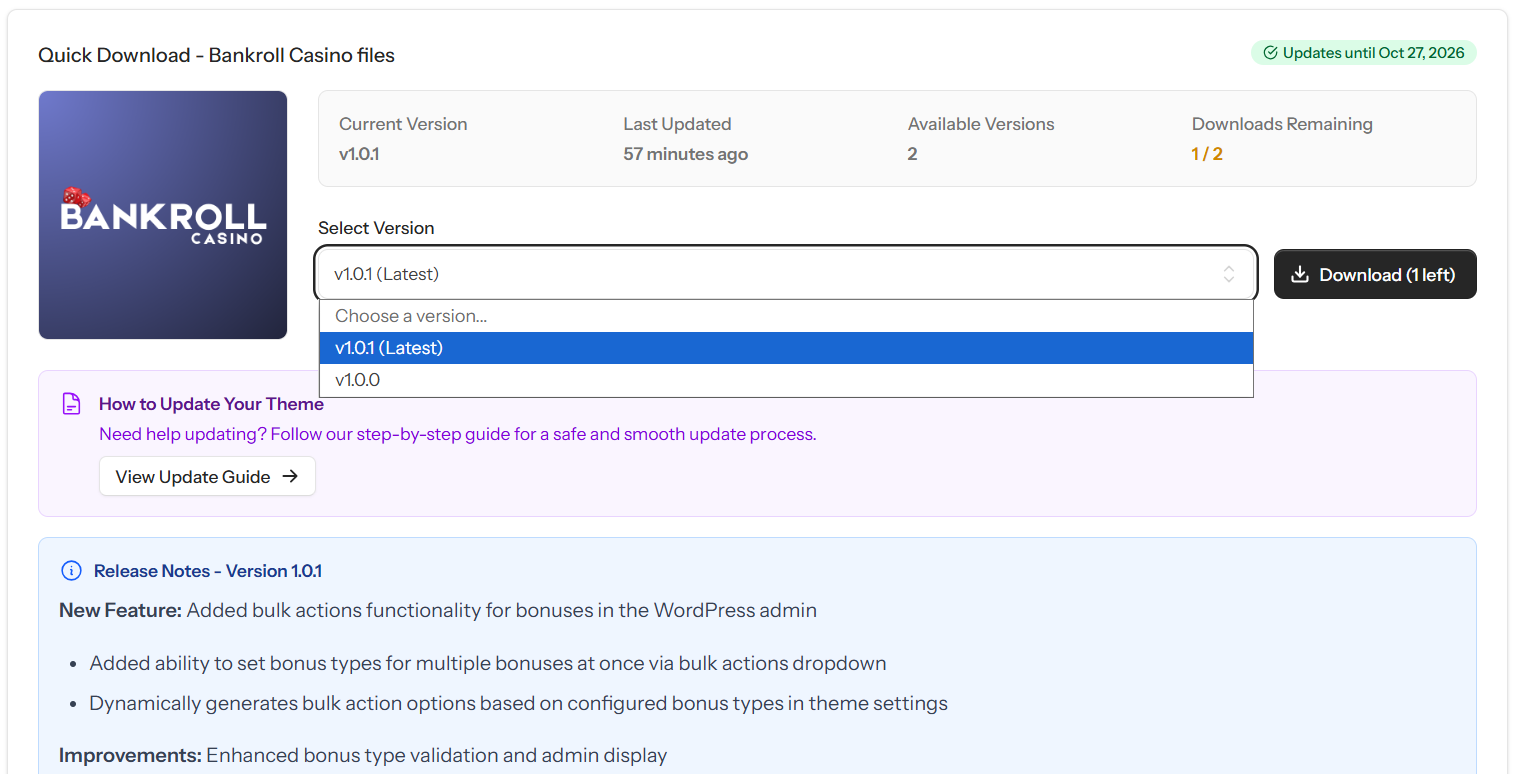
- Click the Download button
- Save the ZIP file to your computer
Note: You can download each product up to 2 times per 24-hour period.
Step 2: Access WordPress Admin Dashboard
- Log in to your WordPress admin panel
- The URL is typically:
https://yoursite.com/wp-admin
Step 3: Navigate to Themes Section
- In the WordPress admin sidebar, hover over Appearance
- Click on Themes
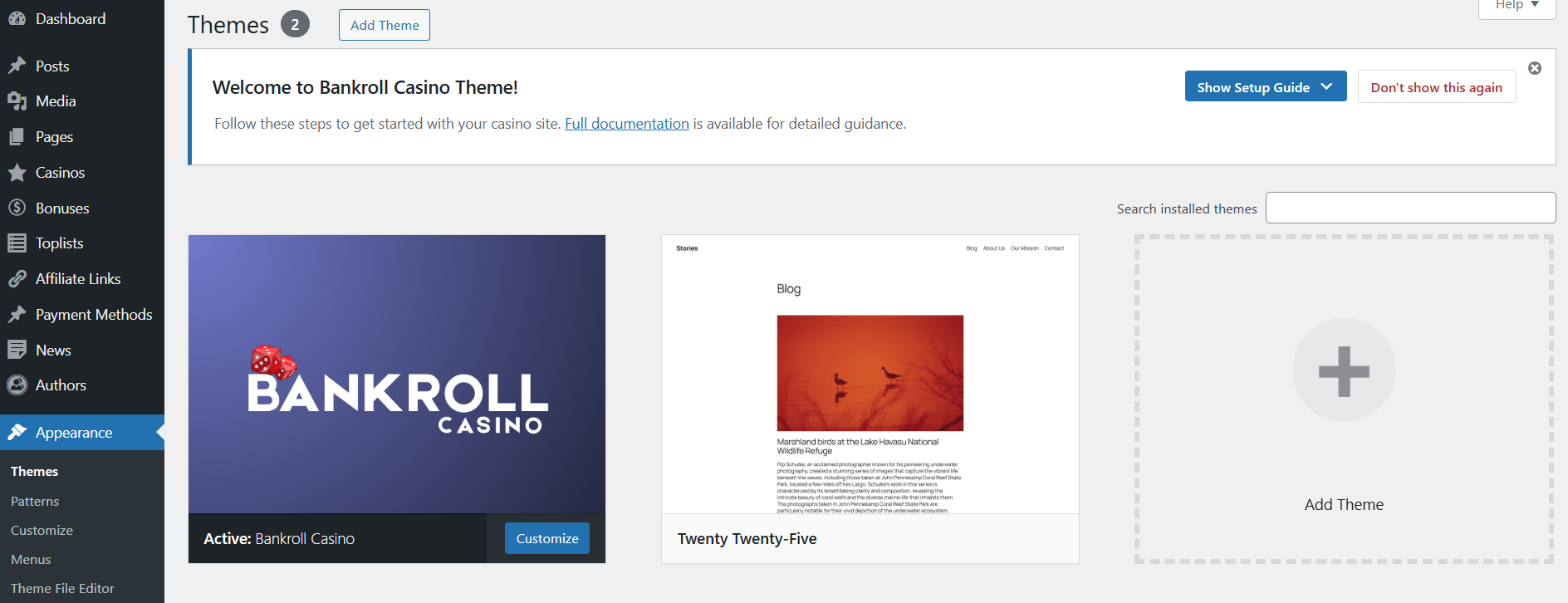
- You'll see all your installed themes
Step 4: Upload the New Theme Version
- Click the Add New Theme button at the top of the page
- Click the Upload Theme button
- Click Choose File or Browse
- Select the theme ZIP file you downloaded in Step 1
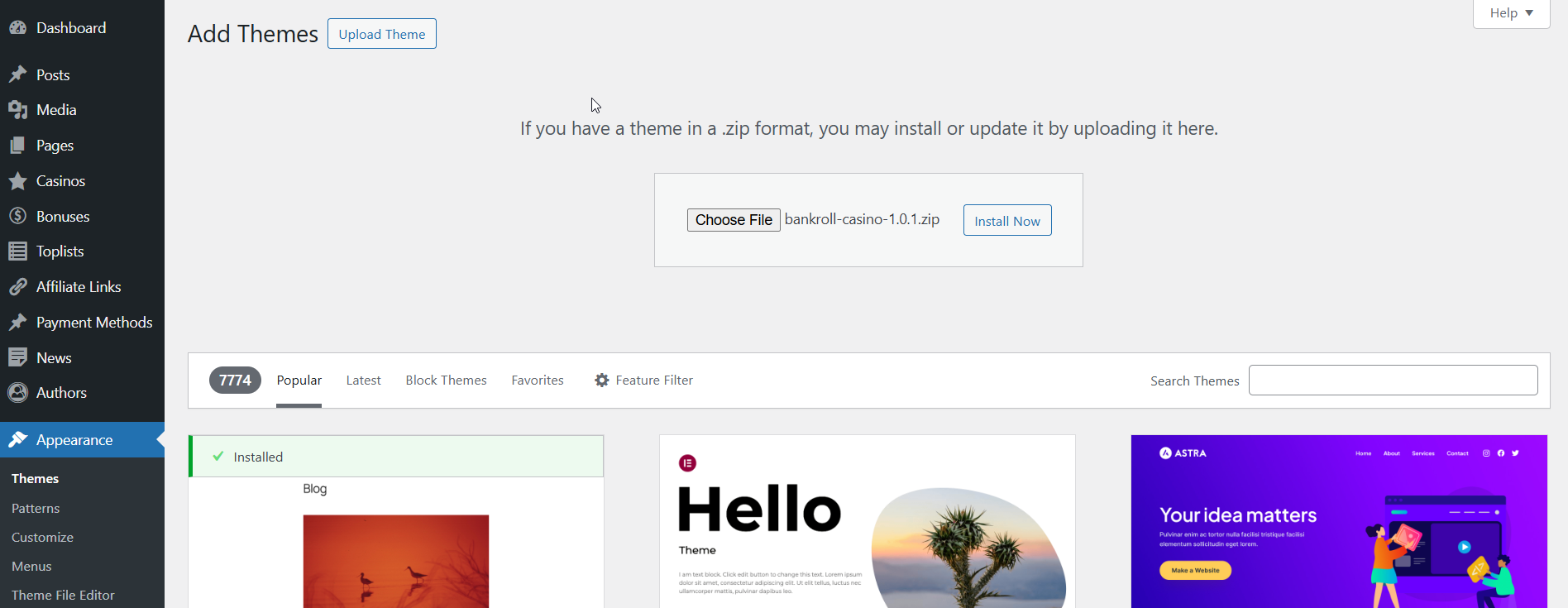
- Click Install Now
Step 5: Replace the Existing Theme
After clicking "Install Now", WordPress will detect that the theme is already installed.
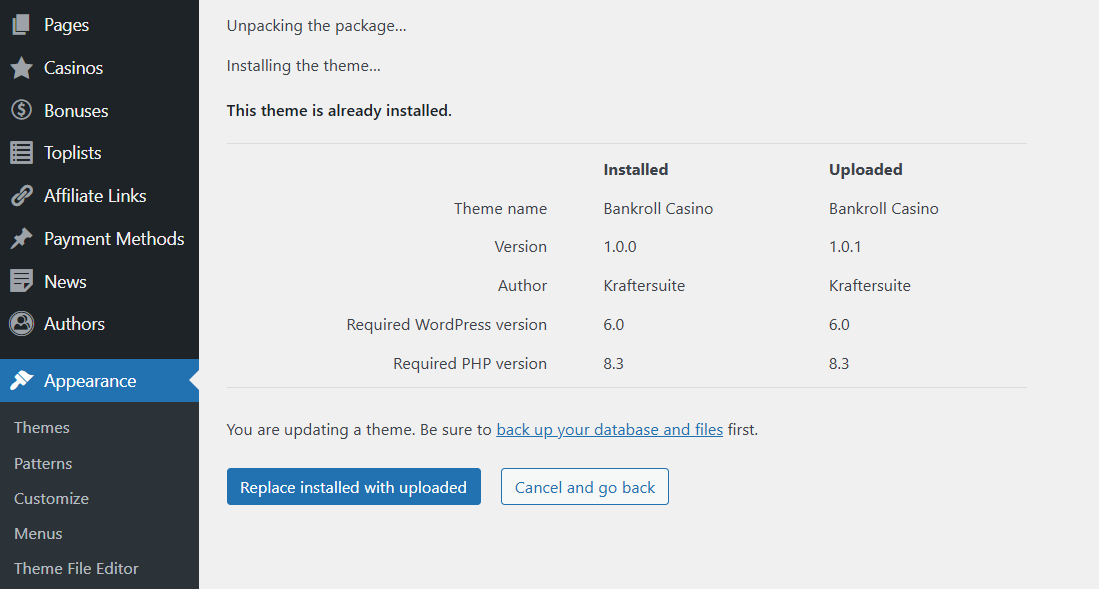
You will see a message:
Destination folder already exists. Theme is already installed.
This is expected behavior. To update your theme:
- Click the Replace installed with uploaded button
- WordPress will replace the old theme files with the new version
- Wait for the process to complete
Step 6: Verify the Update
Once the replacement is complete:
- You'll see a success message: Theme updated successfully
- Click Activate if the theme isn't already active
- Visit your website to ensure everything is working correctly
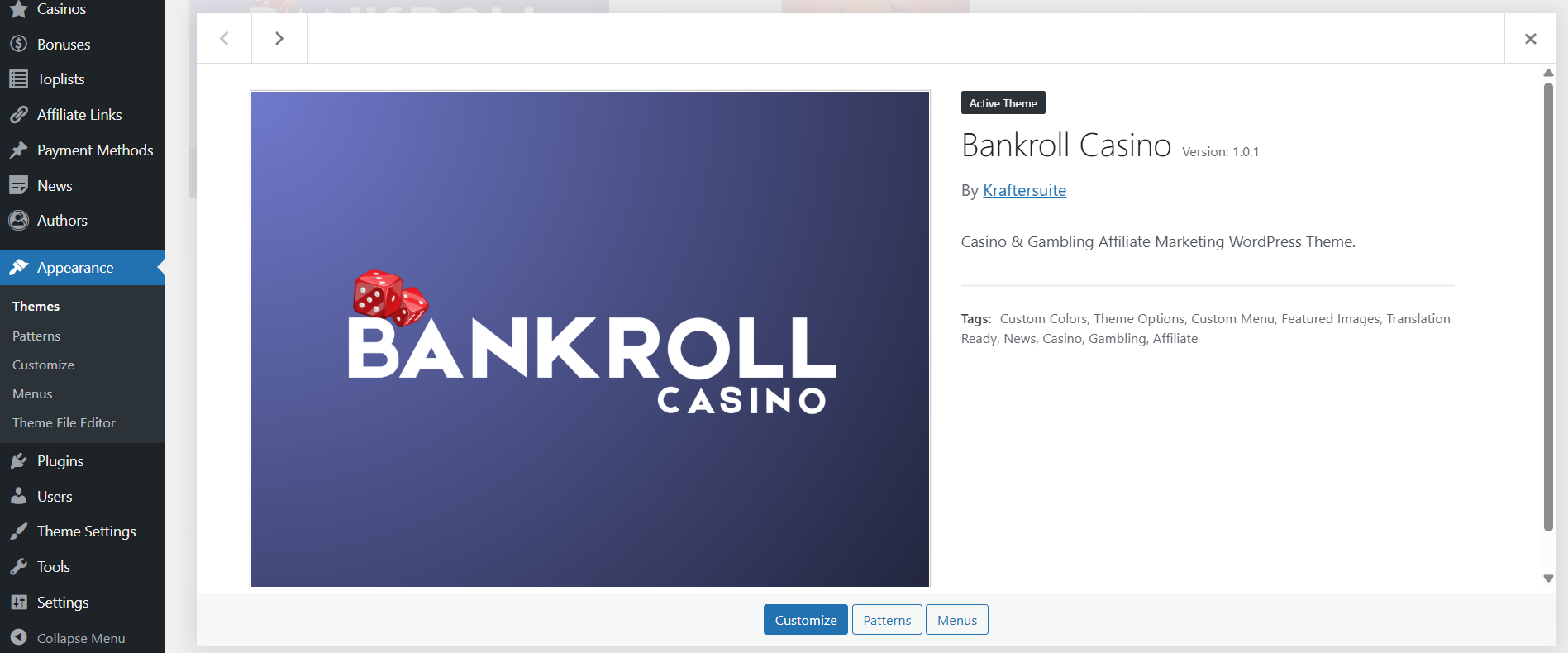
- Check the theme version:
- Go to Appearance → Themes
- Hover over your theme
- Verify the version number matches what you downloaded
Common Questions
Will I lose my theme settings?
No, your theme settings, customizations, and content will be preserved. The update only replaces the theme files, not your configuration or database settings.
Can I test the update first?
We recommend:
- Creating a staging/development site to test the update
- Reviewing the release notes before updating
What if my updates have expired?
If your update period has expired:
- You can still use your current theme version
- To download new versions, you'll need to renew your license
- Contact support for renewal options
Need Help?
If you encounter any issues during the update process:
- Contact our support team through your dashboard
- Include your WordPress version, PHP version, and any error messages